Turn a visual note into a GitHub issue in one step
A useful bug report starts with the exact place where something went wrong. Vynix lets you click the broken part of a page, capture the surrounding developer context, and turn that visual note into a GitHub issue your team can act on.
Why visual feedback often breaks down
Most website bugs are first noticed visually. A designer spots a button wrapping onto two lines. A product manager sees a checkout message that does not match the state of the cart. A QA tester clicks a dropdown and nothing opens. The first report usually sounds simple, but the developer who receives it still has to answer a long list of questions before writing code.
Which page was it on? What screen size? Which element? Was there a console error? Did an API request fail? Was the user logged in? Was the issue caused by CSS, client-side state, or a backend response? If the bug report is only a screenshot with a circle drawn around a problem, the next step is often detective work.
- Screenshots show the symptom, but not the DOM element behind it.
- Written notes often miss browser console messages and failed requests.
- A vague issue title can send a developer to the wrong component.
- Extra back-and-forth slows down small fixes that should be quick.
What Vynix captures when you click the problem
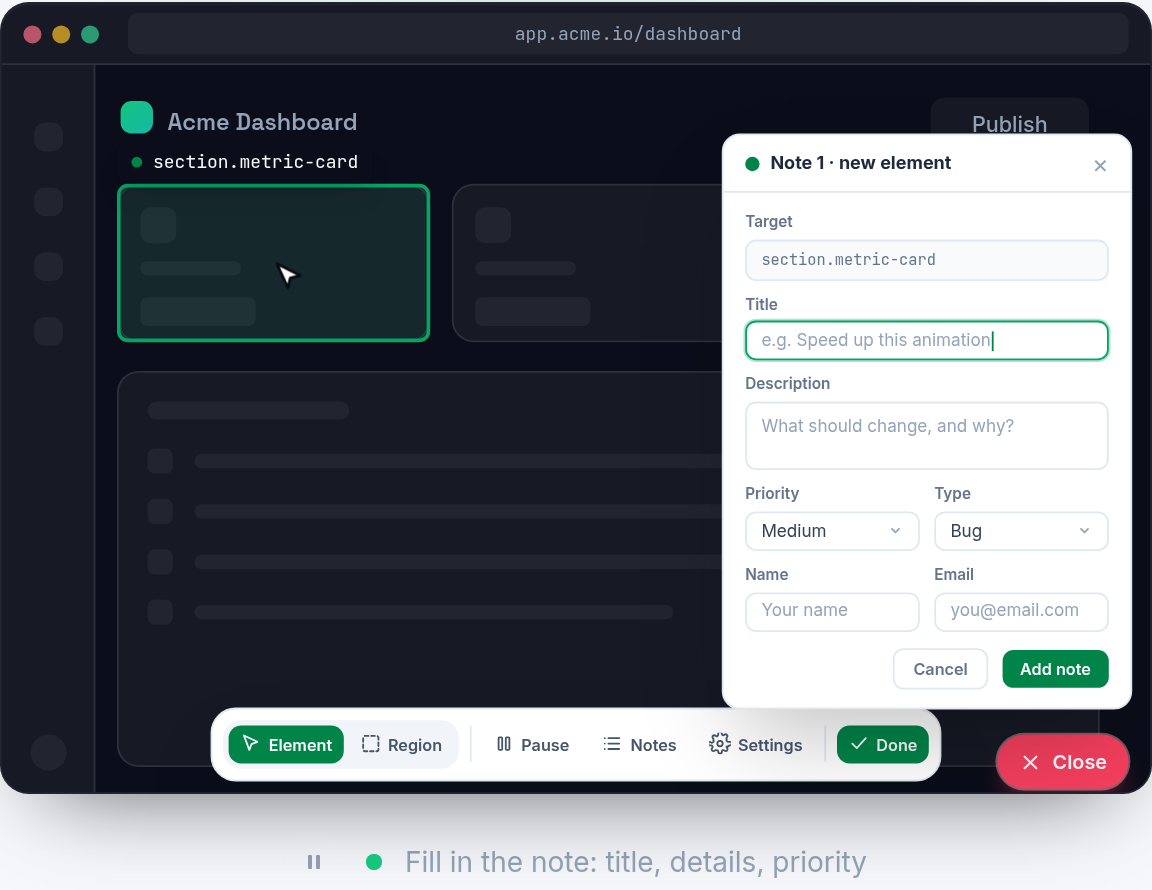
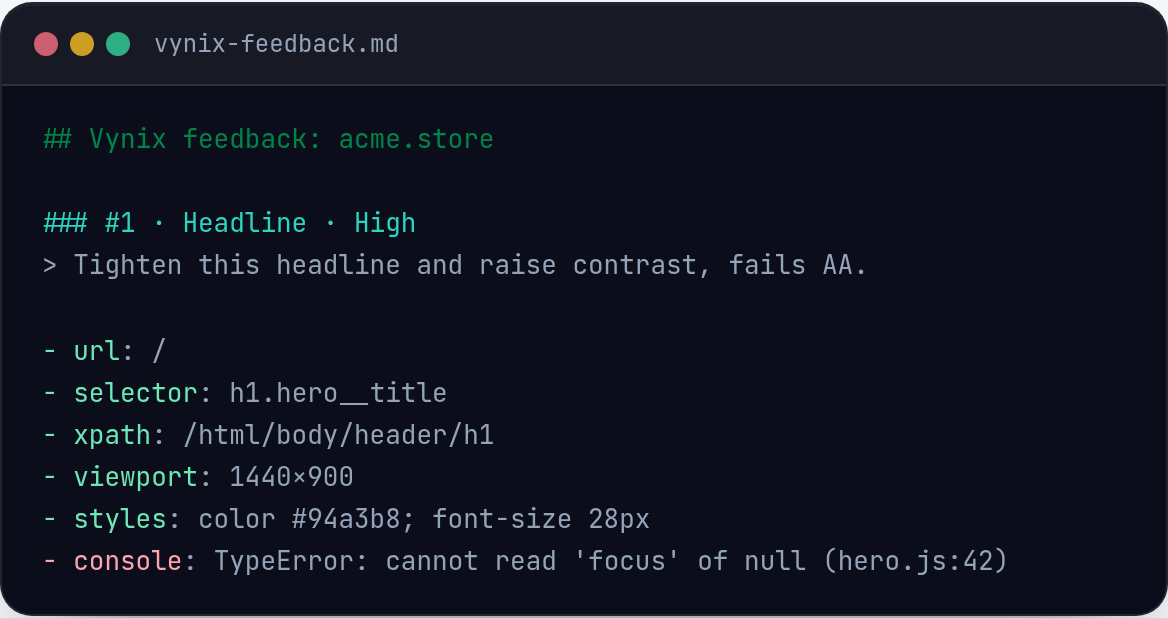
Vynix is built around a lightweight widget you add to a site. When someone sees a problem, they click the affected part of the page instead of writing a long explanation from memory. Vynix captures the selected element, a screenshot, the console and network context, and an AI diagnosis of the likely root cause.
That context matters because many visual bugs are not only visual. A missing label may come from a failed translation request. A disabled submit button may come from client-side validation that never resets. A layout shift may point to a CSS rule, but it may also depend on an API payload that contains a longer than expected string.
- The element capture helps identify the exact part of the page being reported.
- The screenshot preserves what the reporter saw at that moment.
- Console context can reveal JavaScript errors related to the bug.
- Network context can show failed or suspicious requests near the time of the report.
- The AI diagnosis gives the developer a starting hypothesis, not a final verdict.
From note to issue without rewriting the bug report
The handoff is where many reports lose detail. A person notices the problem in the browser, then switches to GitHub, writes a title, pastes a screenshot, tries to describe the steps, and may or may not remember to include console output. Vynix reduces that translation step. After the click, you can open a GitHub issue from the captured context.
The value is not just speed. It is consistency. A GitHub issue created from a Vynix annotation can include the things developers usually ask for after the first report arrives: what was clicked, what the page looked like, what the browser reported, what the network activity showed, and what the likely cause might be. The issue becomes easier to triage because it starts closer to the code.
- Click the broken or confusing part of the page.
- Review the captured context and AI diagnosis.
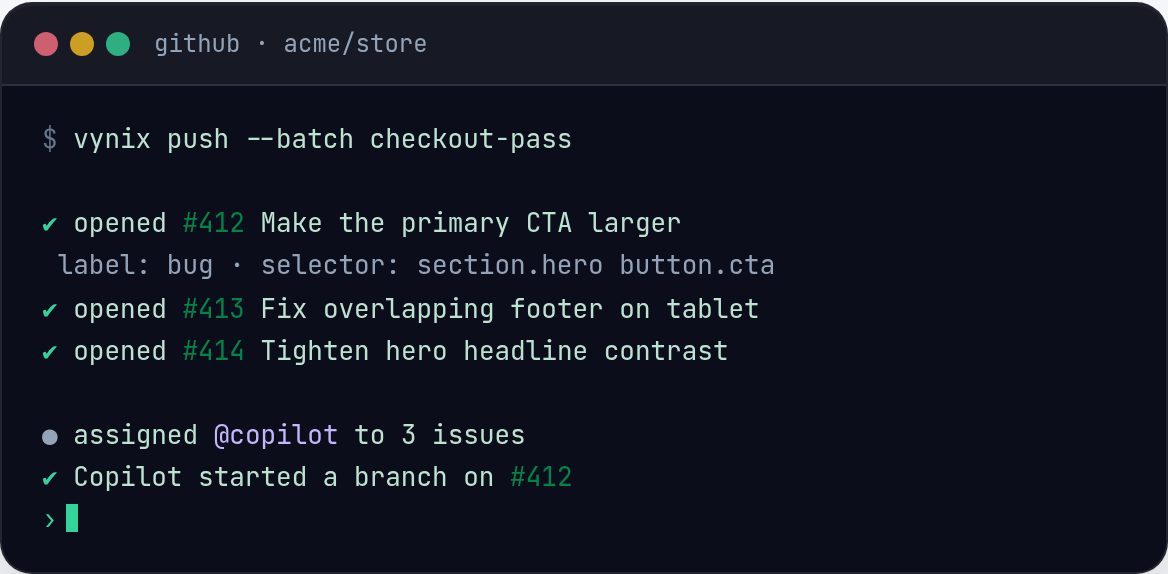
- Open a GitHub issue instead of manually rebuilding the report.
- Assign the issue to a coding agent when that is part of your workflow.
A concrete example: the checkout button looks enabled but does nothing
Imagine a tester is reviewing checkout and sees a primary button that looks active. They click it, but the order does not submit. A plain bug report might say, 'Checkout button is broken on the payment page.' That is true, but it is not enough to know whether the fix belongs in the button component, form validation, payment API handling, or page state.
With Vynix, the tester clicks the button in the page. The issue can carry the screenshot, the selected element, console context, network context, and an AI diagnosis. Maybe the console shows a JavaScript error thrown after a missing payment token. Maybe the network context shows a 400 response from an endpoint. Maybe the element capture shows that the visible button is not the element receiving the click because an invisible overlay is sitting above it.
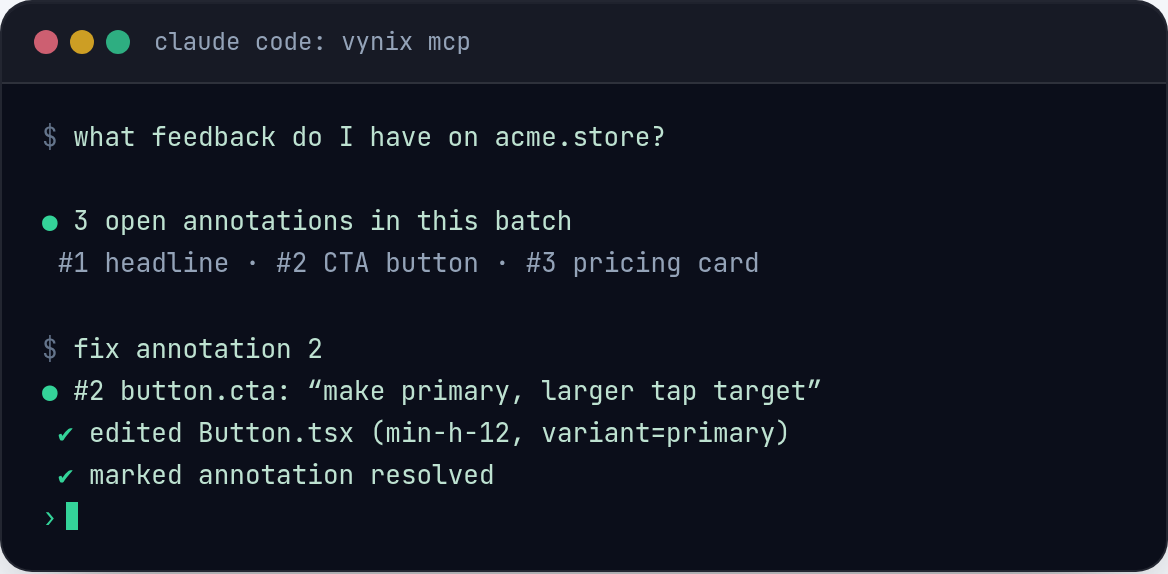
Those are very different fixes. One might require a form state change. Another might require better API error handling. Another might be a CSS stacking issue. The visual note is the same, but the captured context helps point the developer, or coding agent, toward the right file and the right kind of change.
What to put in the GitHub issue
A good GitHub issue should be short enough to scan and detailed enough to build from. Vynix gives you captured context, but the issue still needs a clear shape. The best pattern is to write what the user expected, what actually happened, and why the captured evidence suggests a likely area to inspect.
If your team uses coding agents, this structure matters even more. Agents work better when the task is bounded. Instead of asking an agent to 'fix checkout', the issue can point to the clicked element, include the failing request or console error, and describe the expected behavior. The ready-to-build prompt can then focus on the smallest useful change.
- Use a specific title, such as 'Checkout payment button does not submit after card token error'.
- State the expected result in one sentence.
- State the actual result in one sentence.
- Keep the Vynix screenshot and captured element attached to the issue context.
- Include the console and network clues when they appear related.
- Treat the AI diagnosis as a lead to verify in code.
How this changes triage for developers
Developers do not need every bug report to be long. They need the right facts. A Vynix-powered issue can cut out the early round of questions, especially for bugs that are visible but caused by hidden runtime behavior. Instead of asking for reproduction details first, the developer can inspect the captured evidence and decide whether the problem belongs in frontend rendering, data loading, validation, routing, or integration code.
This also helps teams keep small UI fixes from piling up. A padding issue, a broken state, a missing error message, or a failed click handler can be reported where it happens and sent into the same GitHub workflow the engineering team already uses. The report starts in the browser, but it lands where implementation work is tracked.
The important part is that Vynix does not replace developer judgment. It packages the moment of failure so the person fixing it has a better starting point. The AI diagnosis can be useful, but the final fix still comes from reading the code, writing the change, testing it, and closing the issue with confidence.
- Less time spent asking where the bug happened.
- Fewer reports that contain only a screenshot and a vague title.
- Better starting context for human developers and coding agents.
- A cleaner path from browser feedback to GitHub work.
- A visual note becomes much more useful when it includes the element, screenshot, console context, and network context.
- Vynix helps turn a clicked website problem into a GitHub issue without rewriting the report by hand.
- The AI diagnosis and ready-to-build prompt give developers and coding agents a clearer starting point, while the final fix still depends on code review and testing.
Frequently asked questions
Does Vynix automatically fix the bug?
No. Vynix captures the visual note, developer context, and an AI diagnosis of the likely root cause. From there you can copy a ready-to-build prompt or open a GitHub issue and assign it to a coding agent, but the code change still needs to be made and reviewed.
What context does Vynix include with a report?
Vynix captures the selected element, a screenshot, console context, network context, and an AI diagnosis. That gives the developer more than a visual symptom and helps narrow down where to look.
Who should use Vynix to create issues?
Anyone who reviews a website and needs to report problems can use it: developers, QA testers, product managers, designers, and support teams. The main benefit is that a visual observation becomes a GitHub-ready issue without manually collecting the technical details.
Install the widget with one script tag, point at a bug, and hand the fix to your coding agent.
Get started free