The context an AI agent needs to fix front-end bugs
AI coding agents can fix many front-end bugs, but only when the task gives them enough context to make the right change. A vague ticket like "button broken on checkout" forces the agent to guess at the DOM, state, data, and user path. Good context turns a bug report into a buildable task.
Why vague front-end tickets fail
Front-end bugs are often visible before they are understandable. A designer sees text wrapping badly. A support teammate sees a modal that will not close. A product manager sees a price field that shows the wrong value after a coupon is applied. Each report is true, but none of them tells a developer or an AI agent where to look.
An AI agent needs more than a sentence because a browser screen is the result of many layers working at once. The rendered element may come from a React component, a CSS rule, a feature flag, a CMS field, a failed API response, or browser state left over from a previous interaction. If the agent only receives the symptom, it may edit the wrong file, patch the wrong component, or add defensive code that hides the real issue.
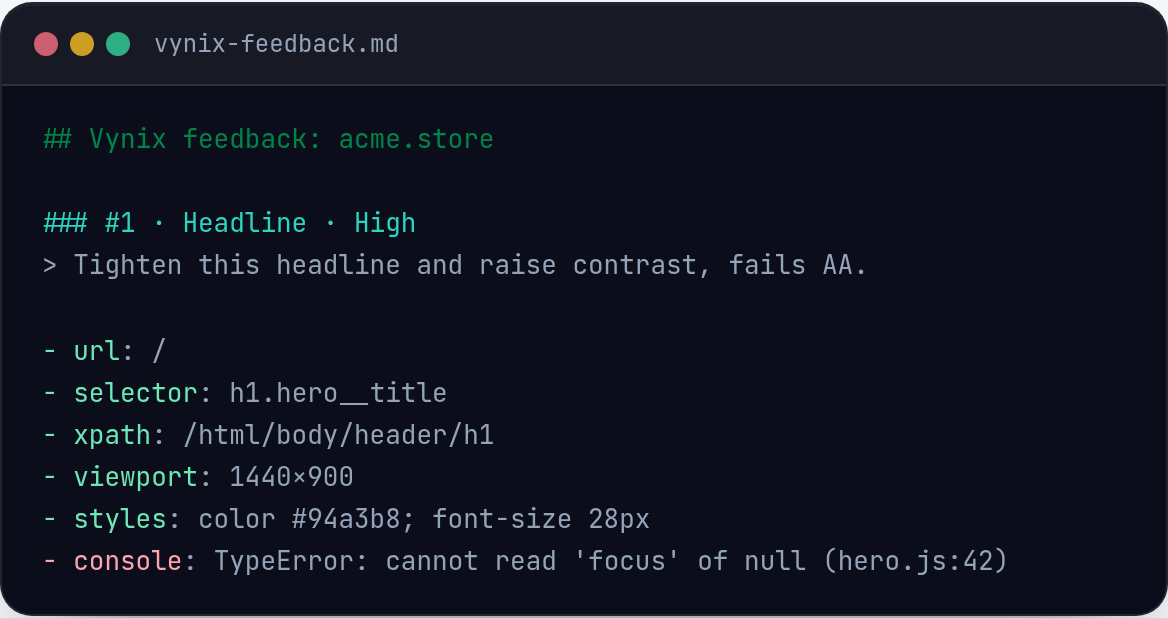
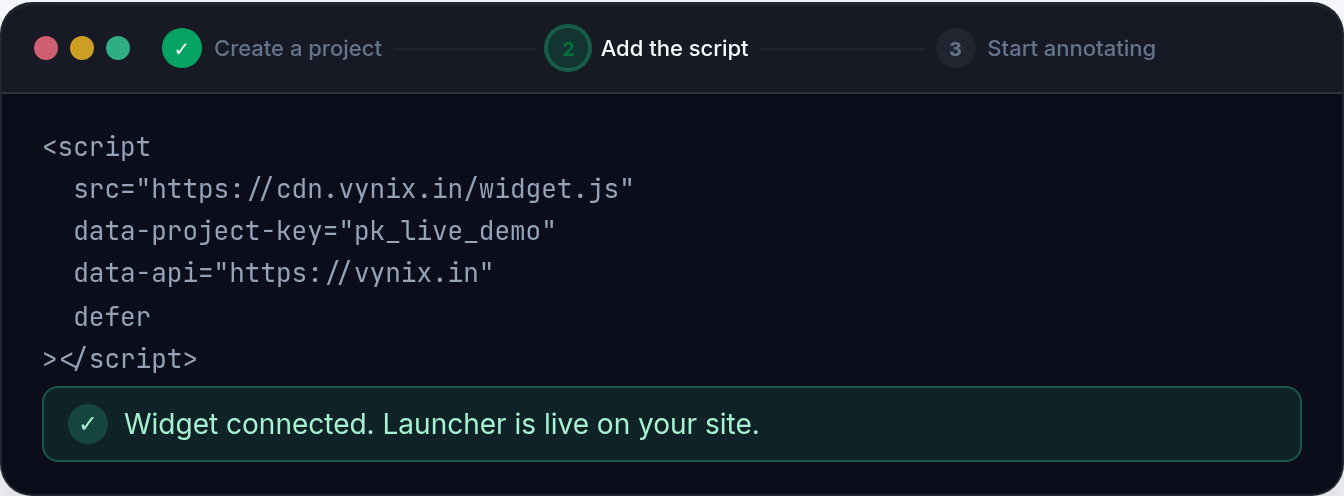
The goal is not to write longer bug reports. The goal is to capture the right evidence at the moment the bug is visible. That means anchoring the report to the element on the page, the visual state, the console output, the network activity, and the steps that produced the issue. Vynix is built around that workflow: drop a lightweight widget on a site, click what is wrong, and capture the browser context that makes the task usable.
Start with the exact element that is wrong
The most useful front-end bug report points to a specific element, not just a page. "The submit button on /billing is disabled after entering a valid card" is much better than "billing is broken". Even better is a report tied to the actual button element in the DOM, because the agent can reason from the element back to the component, props, class names, and nearby state.
This matters because many pages repeat similar UI patterns. A settings page may have five save buttons. A product card may render dozens of price labels. A header may have desktop and mobile versions in the DOM at the same time. When the agent knows which element was clicked during reporting, it can avoid fixing a similar-looking component that is not the one users are complaining about.
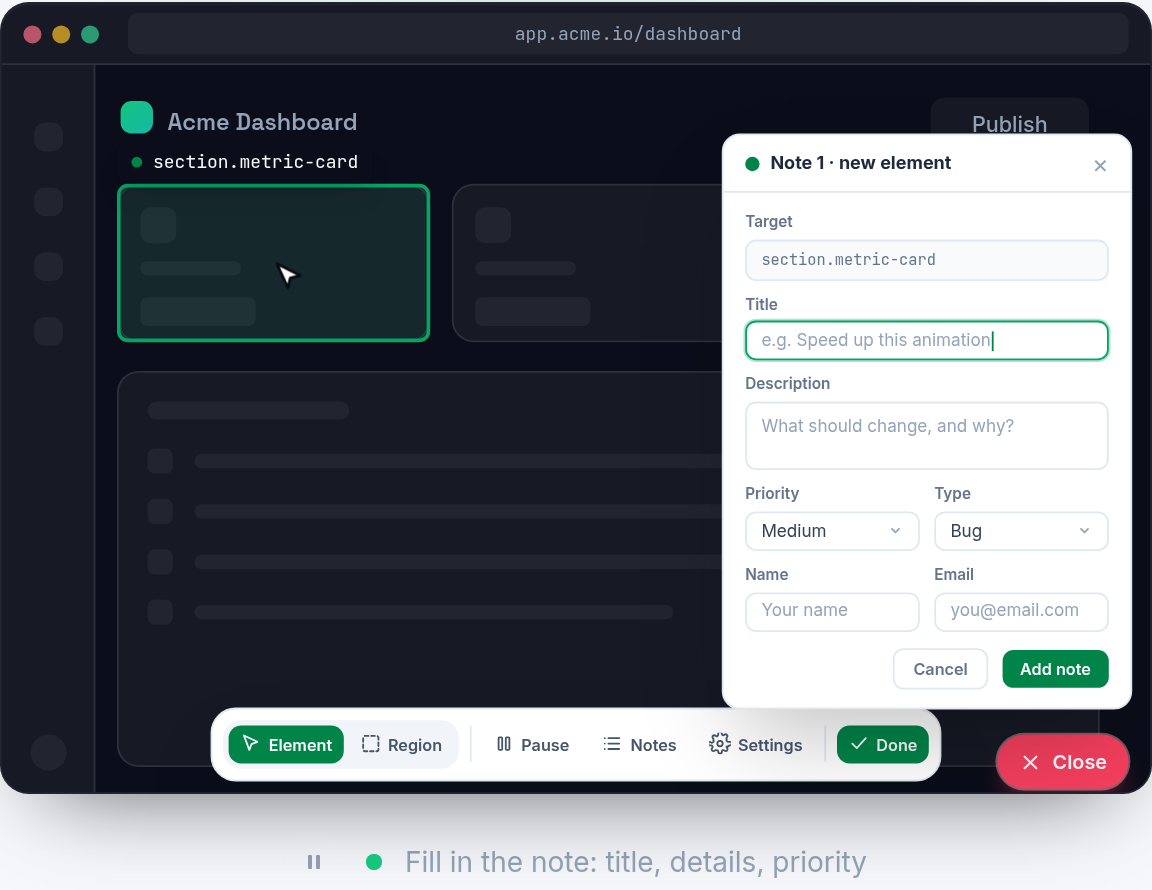
Vynix uses the clicked element as the starting point for the annotation. That element capture gives the report a concrete anchor instead of a loose description.
- Useful: "The disabled button in the invite-user modal does not enable after entering a valid email."
- Less useful: "Invites are broken."
- Useful: "The price text inside the second plan card overlaps the billing-period label at 375px width."
- Less useful: "Pricing page looks bad on mobile."
Add the screenshot, but do not stop there
A screenshot is still one of the fastest ways to show a front-end bug. It captures layout, copy, spacing, color, and the visual relationship between elements. For visual regressions, a screenshot can answer questions that text cannot, such as whether a dropdown is behind an overlay or whether a tooltip is positioned against the wrong edge.
But a screenshot alone is not enough for an AI agent. It shows the result, not the cause. A broken image in a screenshot might be a missing asset, a bad URL, a blocked request, a content security policy issue, or a component passing an empty string. A button that appears disabled might be disabled by validation logic, loading state, a permission check, or CSS.
The best screenshot is paired with machine-readable context from the browser. That lets the agent connect the visual symptom to evidence in the DOM, logs, requests, and runtime errors. Vynix captures a screenshot as part of the report, but it also captures surrounding technical context so the screenshot becomes a clue instead of the whole case.
Console and network data often reveal the cause
The browser console is where many front-end failures announce themselves. A null reference error, a hydration warning, a failed dynamic import, or a rejected promise can point directly to the code path that broke. If the bug report excludes console output, the agent may have to reproduce the issue before it can even form a theory.
Network data is just as important. Many UI bugs are data bugs that happen to appear in the browser. A component may render an empty state because an API returned 500. A form may never finish submitting because a request is stuck pending. A user menu may show the wrong role because the permissions endpoint returned stale data. Without the request context, an agent may keep editing the UI when the contract between client and server is the real problem.
Vynix captures console and network context when the user clicks the faulty element. That timing matters. The useful evidence is usually the set of logs and requests around the failure, not a generic dump from a later page refresh.
- Console errors can identify a failing component, missing property, or runtime exception.
- Console warnings can expose hydration, accessibility, or controlled-input problems.
- Failed requests can show broken endpoints, authorization issues, or payload validation errors.
- Slow or pending requests can explain loading states that never resolve.
- Response payloads and status codes can help separate UI bugs from API bugs.
An AI diagnosis should guide, not replace, the task
An AI diagnosis is useful when it narrows the search area. For example, if a report includes a clicked form field, a console error about reading "value" from undefined, and a failed validation request, an AI-generated diagnosis can suggest that the component is not handling an empty server response. That is a practical starting point for an agent or developer.
The diagnosis should not be treated as unquestionable truth. Browser context can be incomplete, and front-end apps often have hidden state. The agent still needs to inspect the code, run tests when available, and make the smallest correct change. A good report gives the agent enough evidence to verify the diagnosis rather than follow it blindly.
Vynix provides an AI diagnosis of the likely root cause based on the captured context. The word "likely" is important. The value is in turning scattered evidence into a coherent hypothesis: this element, in this visual state, with these console messages and these network calls, probably fails because of this code path or data condition.
Turn the report into an agent-ready prompt
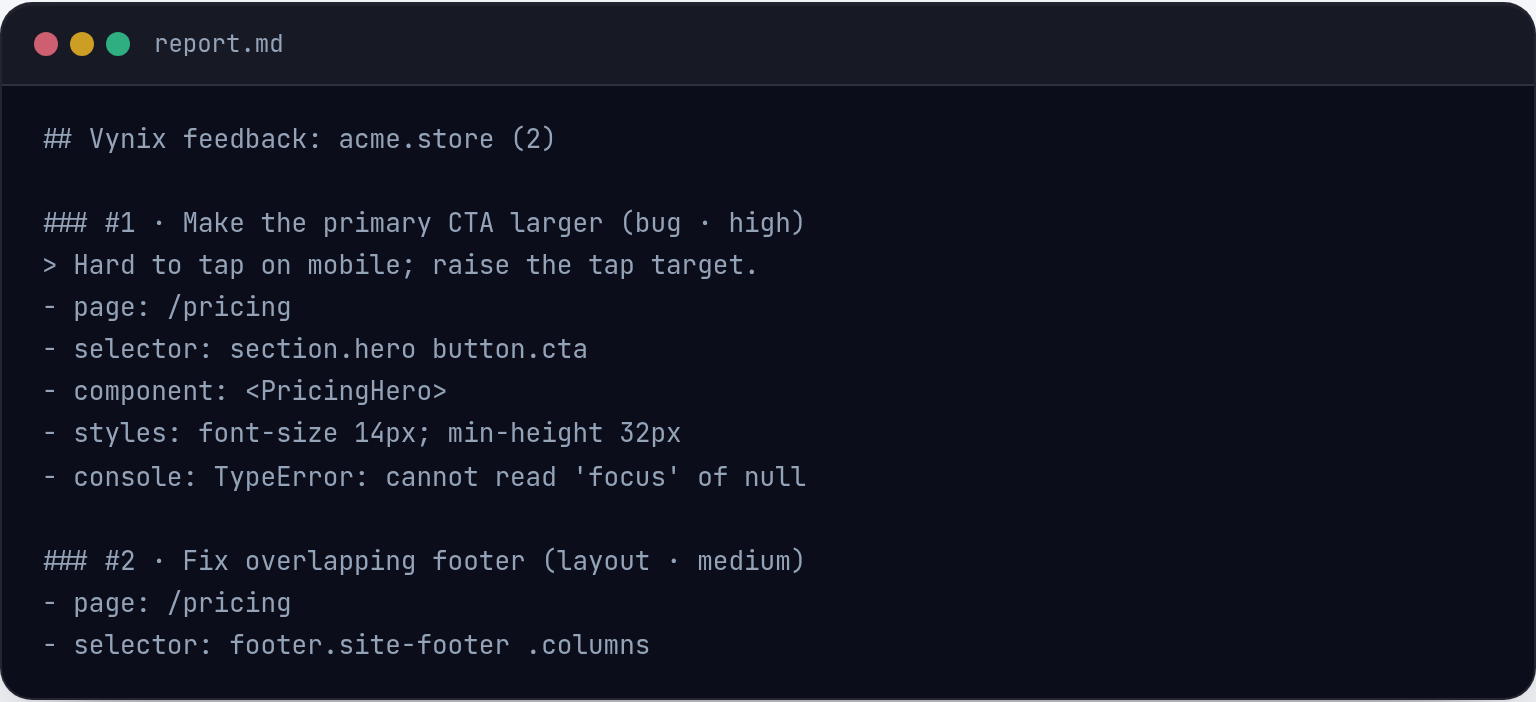
Once the context is captured, the next step is to hand it to the system that will do the work. For an AI coding agent, the task should be specific enough to act on but not so prescriptive that it forces a bad implementation. The prompt should name the symptom, the affected route or view, the selected element, the observed evidence, and the expected behavior.
A weak prompt says, "Fix the checkout button." A stronger prompt says, "On the checkout page, after a valid shipping address is entered, the Place order button remains disabled. The annotation is attached to the button element. The screenshot shows all required fields filled. The console includes a TypeError from CheckoutSummary. The network tab shows the shipping-rates request returns 200 with an empty rates array. Find the cause, update the front-end handling, and add or update tests if this codebase has relevant tests."
Vynix lets you copy a ready-to-build prompt or open a GitHub issue and assign it to a coding agent. That keeps the workflow close to the bug itself: observe the issue, click the element, capture the context, then send a task with enough evidence for the agent to start in the right place.
- Include the visible symptom and the expected behavior.
- Reference the clicked element and page state.
- Include the screenshot and technical context rather than summarizing from memory.
- Ask the agent to inspect the code path before changing files.
- Ask for tests when the repository has a relevant test setup.
Use context to reduce wrong fixes
The biggest cost of poor bug context is not the time spent writing the ticket. It is the time spent reviewing the wrong fix. An AI agent can move quickly, which means it can also produce a plausible patch to the wrong part of the app quickly. Better context reduces that risk by constraining the task to evidence from the browser.
This is especially important for teams using agents in an issue-driven workflow. If every GitHub issue is just a short human description, the agent has to infer too much. If the issue includes the element, screenshot, console logs, network context, and a likely diagnosis, the agent can spend more of its budget reading relevant code and less of it guessing what happened.
For front-end work, the browser is the scene of the bug. Capturing that scene at the moment someone sees the issue is the simplest way to make AI-assisted debugging more reliable. Vynix exists to make that capture step lightweight enough that people actually use it.
- AI agents fix front-end bugs better when reports are tied to the exact element and browser state where the issue appears.
- Screenshots help, but console logs and network context often explain whether the cause is UI code, data, permissions, or a failed request.
- Vynix turns a click on the broken part of a site into captured context, a likely diagnosis, and an agent-ready task.
Frequently asked questions
What context should I give an AI agent for a front-end bug?
Give the agent the visible symptom, expected behavior, exact page or route, clicked element, screenshot, console output, network activity, and any short reproduction notes. This combination helps the agent connect what the user saw to the code and data that produced it.
Is a screenshot enough for an AI coding agent to fix a UI bug?
Usually not. A screenshot is helpful for visual state, but it does not show runtime errors, failed requests, component state, or API responses. Pair it with DOM, console, and network context so the agent can investigate the likely cause.
How does Vynix fit into an AI bug-fixing workflow?
Vynix adds a lightweight widget to a site. When someone clicks what is wrong, it captures the element, screenshot, console and network context, and an AI diagnosis of the likely root cause. From there, you can copy a ready-to-build prompt or open a GitHub issue and assign it to a coding agent.
Install the widget with one script tag, point at a bug, and hand the fix to your coding agent.
Get started free