How to Connect GitHub and Hand Work to Copilot
GitHub issues are only useful when they contain enough context for someone to act. Vynix helps you capture that context from the live website, then turn it into a GitHub issue or a ready-to-build prompt for Copilot and other coding agents.
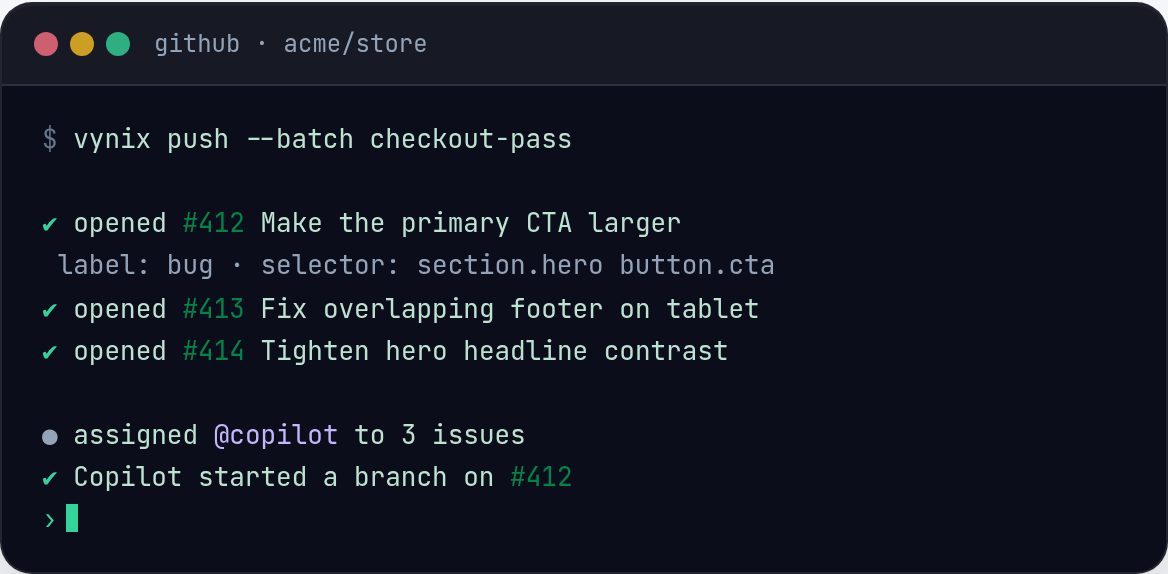
Why GitHub context matters before Copilot starts
Copilot can work from a GitHub issue, but the quality of the result depends on the quality of the issue. A vague report like "checkout button is broken" forces the agent, and the human reviewer, to guess which page, which button, which browser state, and which code path are involved.
A better issue starts from the actual website state. If the problem is a misaligned form label, a failed API call, or a React error after a click, that context should travel with the task. Vynix is built for that handoff. You click on the broken part of the site, and Vynix captures the selected element, a screenshot, console details, network context, and an AI diagnosis of the likely root cause.
That does not replace review or engineering judgment. It gives Copilot and your team a cleaner starting point, so the first attempt is less likely to chase the wrong file or fix a symptom instead of the cause.
Connect Vynix to the right GitHub repository
Start by connecting Vynix to GitHub and choosing the repository where the fix should happen. The exact repository matters. If your marketing site, app frontend, and API live in separate repos, sending every issue to one default project will create extra triage work.
Use the same rule you would use when assigning a human developer. If the bug appears in the browser but the network trace shows a 500 response from an API endpoint, the issue may belong in the backend repo. If the API response is correct but the page renders it incorrectly, send it to the frontend repo.
Before you hand work to Copilot, check a few setup details:
- Confirm the GitHub account or organization has access to the target repository.
- Choose the repository that contains the code most likely to need the change.
- Make sure issue creation is enabled for that repository.
- If you plan to assign work to Copilot, confirm that your GitHub plan and repository settings support Copilot coding agent assignment.
- Agree on labels such as bug, frontend, backend, design, regression, or needs-review, so generated issues fit your normal workflow.
Capture the bug from the page, not from memory
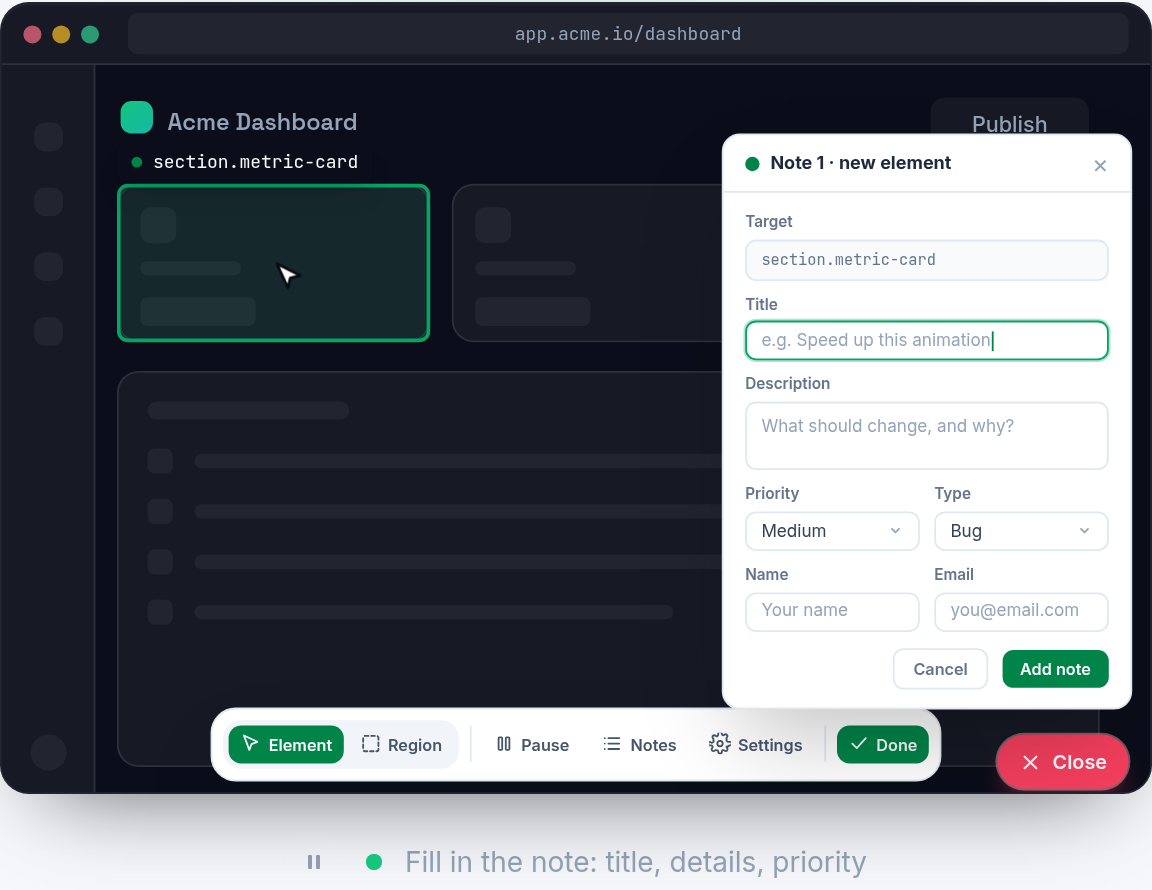
The best time to create the issue is while the bug is visible. With the Vynix widget installed on the site, open the page, reproduce the problem, and click the element that is wrong. For example, click the disabled checkout button, the overlapping modal, the empty product card, or the field that shows the wrong validation message.
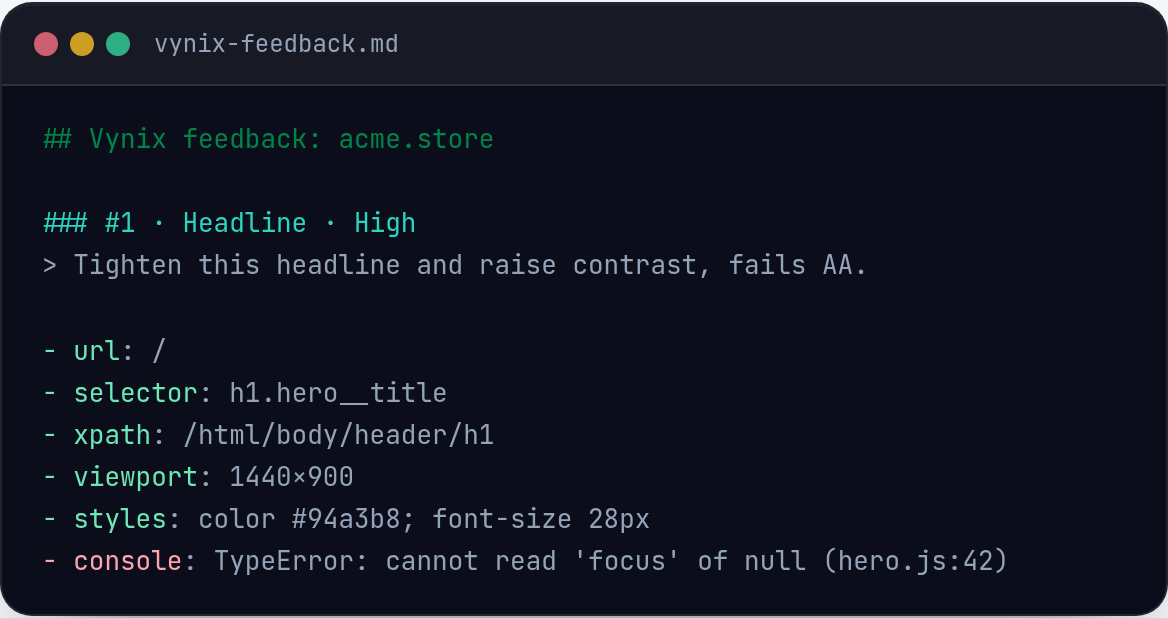
Vynix captures context that is easy to forget when writing an issue later. The selected element helps identify the DOM area. The screenshot shows the visual state. Console context can reveal errors that never reach the UI. Network context can show failed requests, unexpected status codes, slow responses, or payloads that do not match what the component expects.
This is especially useful for issues that only appear after a few steps. Instead of writing a long message from memory, capture the moment when the site is already in the failing state. Then add a short human note that explains what you expected to happen.
- Good note: "After applying a discount code, the total updates but the pay button stays disabled."
- Good note: "The mobile menu opens behind the hero image on iPhone width."
- Good note: "Search returns results in the network response, but the results list stays empty."
- Weak note: "This page is weird."
- Weak note: "Fix layout."
Turn the annotation into a GitHub issue Copilot can use
Once the bug is captured, use Vynix to open a GitHub issue. The goal is not to write the longest possible issue. The goal is to create a task with enough evidence, a clear expected outcome, and a reasonable boundary for the coding agent.
A useful issue should include what failed, where it failed, how to reproduce it, and what success looks like. Vynix provides the captured website context and AI diagnosis, but you should still review the text before sending it to GitHub. If the diagnosis says the likely cause is a stale component state, but you know the route recently moved to a new API, add that note.
For Copilot, small and specific issues usually work better than broad ones. "Fix the checkout page" is too open. "Re-enable the pay button after a valid discount code updates the order total" gives the agent a target. It also gives the reviewer a clear test.
- Title: State the visible problem in one sentence.
- Observed behavior: Describe what the user sees right now.
- Expected behavior: Describe the correct result.
- Reproduction steps: Keep them short and numbered.
- Captured context: Include the Vynix screenshot, element, console, and network context when available.
- Likely cause: Include the Vynix AI diagnosis if it helps, but do not treat it as final proof.
- Acceptance check: Add how a reviewer can confirm the fix.
Assign the issue to Copilot or copy a build prompt
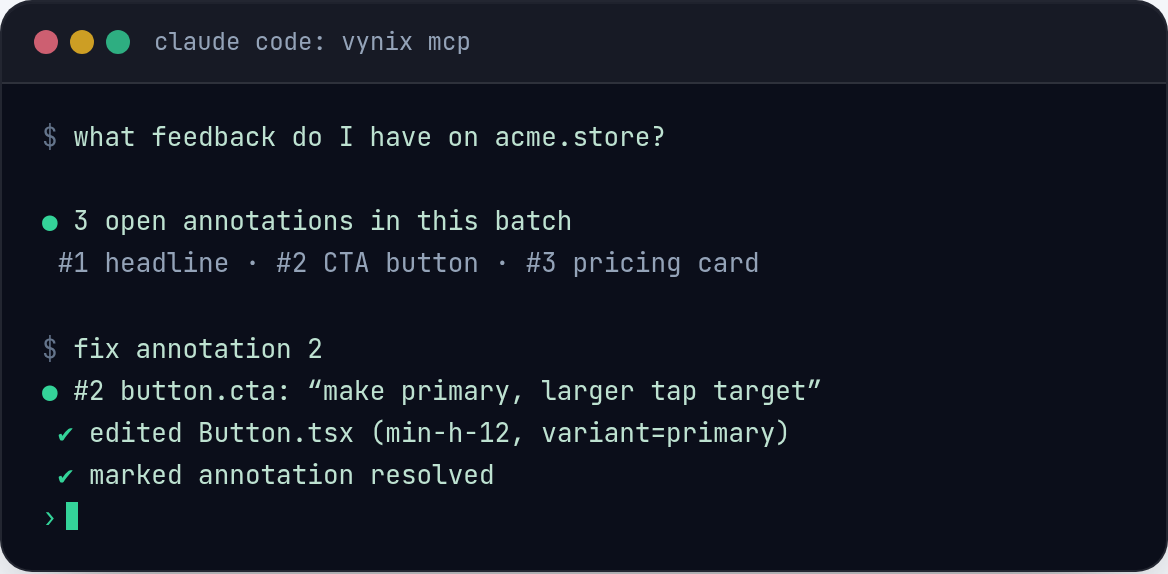
After the issue is in GitHub, assign it to Copilot if your repository supports GitHub Copilot coding agent. In that flow, Copilot reads the issue, works in the repository, and produces a change for review. The important part is that the issue must be written as an actionable engineering task, not as a loose complaint.
If you do not want to assign the issue directly, Vynix can also help you copy a ready-to-build prompt. That prompt can be used with Copilot Chat, an IDE coding assistant, or another coding agent your team uses. This is useful when you want to keep the fix local first, or when the task needs human pairing before it becomes a pull request.
A good prompt tells the agent where to look, what to change, and what not to break. For example: "Investigate why the pay button remains disabled after applying a valid discount code. Use the captured network response and console context. Update the checkout state handling so the button becomes enabled when the updated order total is valid. Add or update a test for the discount flow."
Do not skip the review step. Copilot can propose code, but a developer still needs to inspect the diff, run tests, and verify the behavior in the browser.
Review the result and close the loop
The handoff is not finished when Copilot opens a pull request or when a developer applies the prompt. Someone should validate the fix against the original Vynix capture. Open the same page, follow the same steps, and compare the result to the expected behavior from the issue.
Use the original annotation as a test case. If the bug involved a failed request, check that the request now succeeds or is handled correctly. If it was a visual issue, compare the layout against the screenshot. If it was a console error, confirm that the error no longer appears after the same action.
When the fix is confirmed, close the GitHub issue with a short note. If the issue led to a different root cause than the AI diagnosis suggested, add that too. Those small notes help the next person understand what really happened, and they improve the quality of future triage by the team.
- Reproduce the original steps before testing the fix.
- Check the UI, console, and network behavior again.
- Review the pull request like any other code change.
- Confirm tests were added or updated when the bug is likely to return.
- Close the issue only after the behavior is verified in the target environment.
- Copilot works better when the GitHub issue includes real website context, not just a short bug report.
- Vynix captures the selected element, screenshot, console and network context, and an AI diagnosis so the handoff starts from evidence.
- Assign issues to Copilot only after the task is specific, reviewable, and tied to a clear expected behavior.
Frequently asked questions
Can Vynix assign every GitHub issue to Copilot automatically?
Vynix can help you open a GitHub issue and assign it to a coding agent, but Copilot assignment depends on your GitHub setup. Make sure Copilot coding agent is available and enabled for the repository before using that workflow.
Should I trust the AI diagnosis from Vynix as the root cause?
Treat it as a strong starting point, not a final answer. Vynix uses the captured element, screenshot, console, and network context to suggest the likely cause, but a developer should still review the code and confirm the fix.
When should I copy a prompt instead of opening a GitHub issue?
Copy a prompt when you want to work locally, pair with Copilot in your IDE, or test an approach before creating a formal issue. Open a GitHub issue when the task needs tracking, review, assignment, or team visibility.
Install the widget with one script tag, point at a bug, and hand the fix to your coding agent.
Get started free