From a Reported Bug to a Merged Fix
Most website bug reports start with a sentence that is too thin to build from: the button is broken, the page looks weird, checkout failed. A good fix starts by turning that report into specific, reproducible context, then carrying that context through the issue, the code change, the review, and the merge.
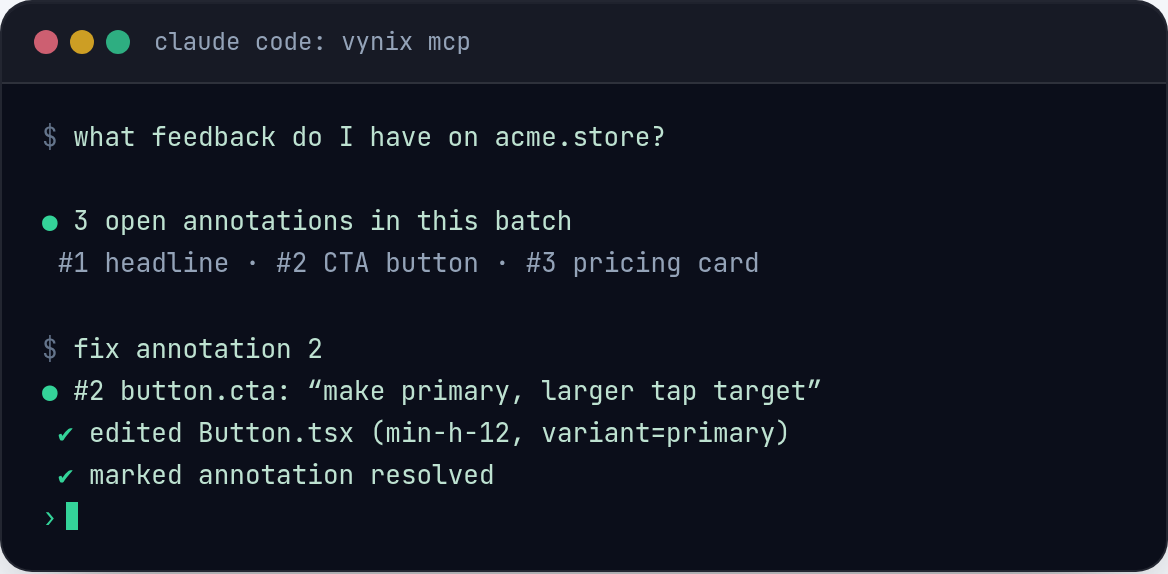
Start with the report you actually get
A real bug report is rarely tidy. A customer might say that the pricing page does not load, a designer might point out that a card overlaps on mobile, or a QA tester might paste a screenshot into chat with no browser details. The first job is not to guess the cause. It is to capture what happened on the page before the trail goes cold.
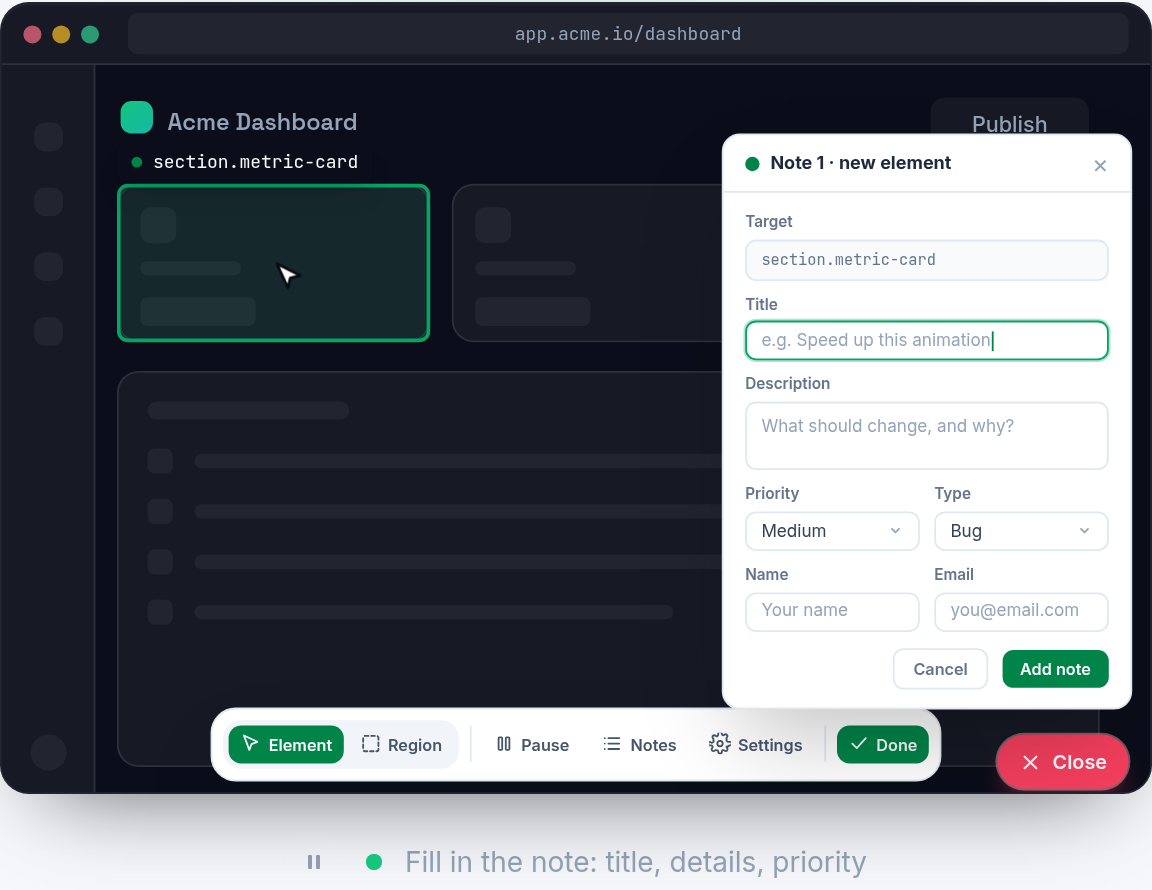
Without page context, the developer has to reconstruct the scene from scraps. Which element was clicked? Was there a console error? Did an API request fail? Was the problem caused by CSS, state, data, or a deployment issue? Vynix is designed for this gap. You drop a lightweight widget on the site, click on the thing that is wrong, and turn a vague report into a concrete development handoff.
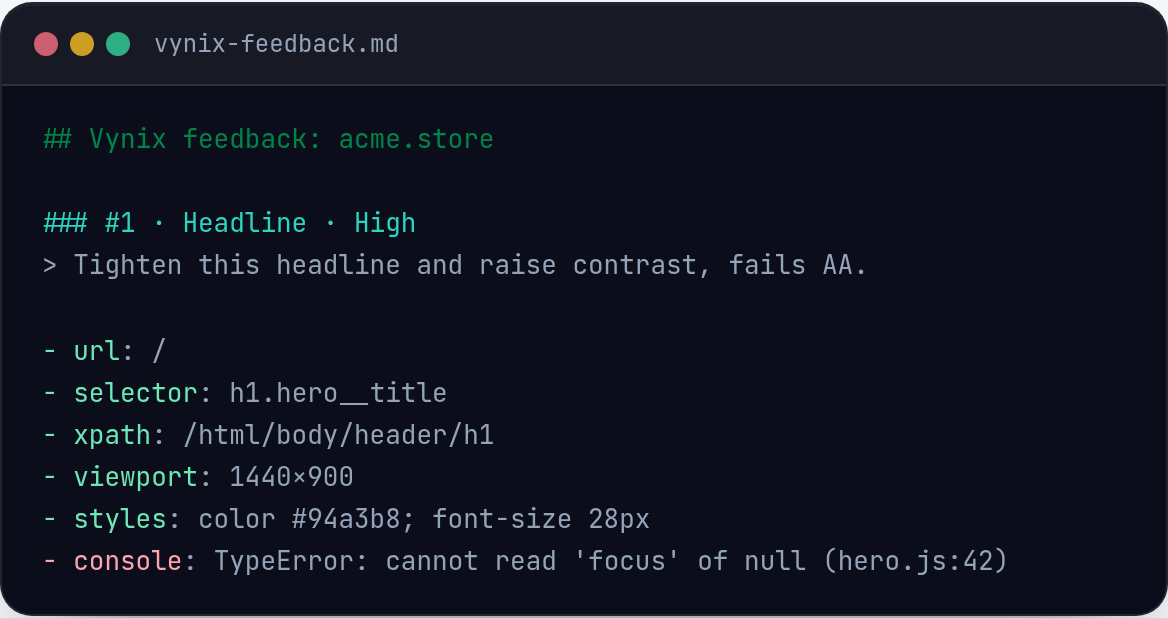
- A visual target: the exact element the reporter clicked or noticed
- A screenshot: what the page looked like when the problem was seen
- Console context: errors or warnings that may explain the behavior
- Network context: failed or suspicious requests tied to the page state
- AI diagnosis: a likely root cause that gives the developer a starting point
Capture the bug at the source
The best time to capture a website bug is while it is visible. If the issue is a broken CTA, a misaligned menu, or an error after submitting a form, the reporter should not have to write a detective story. With Vynix, they can annotate the site directly. They click the problematic part of the page, and the tool records the surrounding technical context that usually gets lost in a chat message.
This matters because front-end bugs are often tied to one specific state. A component may only fail when a feature flag is on, when a response is missing a field, or when the viewport is narrow. A screenshot alone shows the symptom, not the conditions. Console and network context help reveal whether the browser saw a JavaScript exception, a 500 response, a blocked asset, or an unexpected payload.
Turn context into a buildable task
Once the bug is captured, the next step is to make it buildable. This is where many teams lose time. A raw report can bounce between product, QA, and engineering while everyone asks for one more detail. A buildable task should tell the developer what is wrong, where it happened, what evidence is attached, and what a good fix should change.
Vynix helps by producing a ready-to-build prompt or opening a GitHub issue. The important part is not that the task sounds polished. The important part is that it contains enough evidence for a developer or coding agent to start with the right file, component, request, or error pattern instead of searching blindly.
- Bad task: The save button does not work.
- Better task: On the account settings page, clicking Save does not submit changes. Vynix captured the Save button element, a screenshot, a console error, and the failed network request.
- Bad task: Mobile layout is broken.
- Better task: The plan cards overlap at a narrow viewport. Vynix captured the affected card element and page screenshot, so the issue can be checked against the component styles.
Use the AI diagnosis as a lead, not a verdict
An AI diagnosis is useful because it compresses the first pass of investigation. If the console shows a TypeError after a click, and the network tab shows a missing field in a response, the diagnosis can point toward a null check, schema mismatch, or state update problem. That gives the developer a lead before they open the editor.
It should still be treated as a lead. The developer owns the fix. They need to verify the hypothesis in the codebase, reproduce the behavior if possible, and check related paths. The value is in reducing the blank-page phase of debugging. Instead of starting with what happened, the developer can start with does this diagnosis match the code.
Hand it to a developer or a coding agent
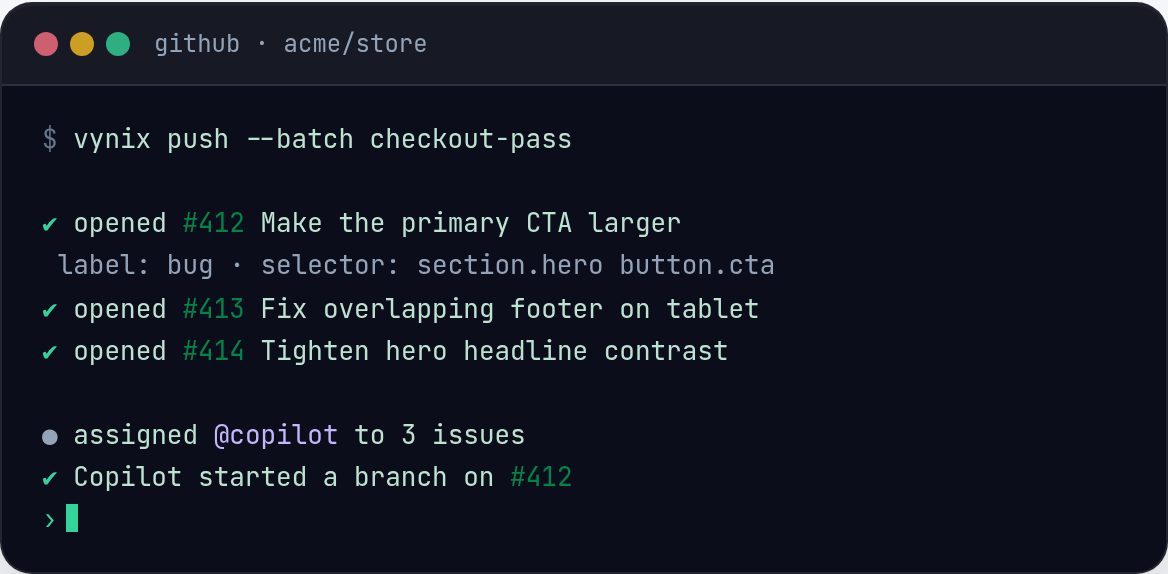
After the capture, there are two common paths. A developer can copy the ready-to-build prompt into their workflow, or the team can open a GitHub issue and assign it to a coding agent. In both cases, the same rule applies: the better the context, the better the first draft of the fix.
A coding agent is most useful when the task is specific. Asking it to fix checkout is too broad. Asking it to inspect the checkout submit handler because Vynix captured a failed POST request and a console error after clicking the submit button is much better. The agent can search the relevant code, propose a patch, and include reasoning tied to the captured evidence. A human should still review the change, run tests, and check whether the fix matches the product intent.
- Include the captured element and screenshot so the UI symptom is clear.
- Include console and network context so the agent can connect the symptom to runtime behavior.
- Include the AI diagnosis, but ask the agent to verify it in the code.
- Keep the acceptance criteria simple: what should work after the fix, and what should not regress.
Review, test, and merge the fix
A good bug workflow does not end when a patch is generated. The fix still needs review. The reviewer should compare the code change against the original evidence: did it address the element that was clicked, the failing request, or the console error that Vynix captured? If the patch changes a nearby area but ignores the recorded symptom, it may only hide the issue.
Testing should follow the path from the report. Recreate the page state, repeat the click or view, and confirm that the visible problem is gone. Also check the surrounding behavior. For example, if the fix adds a guard for missing response data, test both the missing-data path and the normal path. If the fix changes CSS for a card layout, check the affected viewport and at least one wider viewport.
When the review is clean and tests pass, the fix can be merged with a clear trail behind it. The original report, the Vynix capture, the GitHub issue or prompt, the code change, and the review all tell one story. That trail helps the team understand what was fixed later, and it makes repeat issues easier to compare.
- Does the change match the captured symptom?
- Does it address the likely root cause, not just the visible result?
- Was the reported path retested after the change?
- Are related states, viewports, or response shapes still working?
- Is the issue ready to close with a short explanation of the fix?
- A reported website bug becomes easier to fix when the exact element, screenshot, console context, and network context are captured at the source.
- Vynix turns a vague report into a buildable prompt or GitHub issue, with an AI diagnosis that helps developers start their investigation faster.
- The fix still needs normal engineering discipline: verify the diagnosis, review the code, test the reported path, and merge only when the issue is truly resolved.
Frequently asked questions
Does Vynix fix the bug automatically?
No. Vynix captures website context, provides an AI diagnosis of the likely root cause, and helps create a ready-to-build prompt or GitHub issue. A developer or coding agent still needs to make the code change, and a human should review and test it before merging.
What information should I include when opening a GitHub issue from a capture?
Include the captured element, screenshot, console context, network context, and the AI diagnosis. Add a short description of the expected behavior and the actual behavior so the issue has both product context and technical evidence.
When is Vynix most useful in the bug workflow?
It is most useful at the moment a bug is seen on a website. Capturing the element, screenshot, console data, and network context while the issue is visible gives developers a much clearer starting point than a plain text report.
Install the widget with one script tag, point at a bug, and hand the fix to your coding agent.
Get started free