Collecting Website Feedback From Clients and Teammates
Website feedback is easy to ask for and hard to use. A client says a button is broken, a designer points at spacing, a teammate reports a console error, and the developer still has to ask which page, which browser, what they clicked, and what happened next.
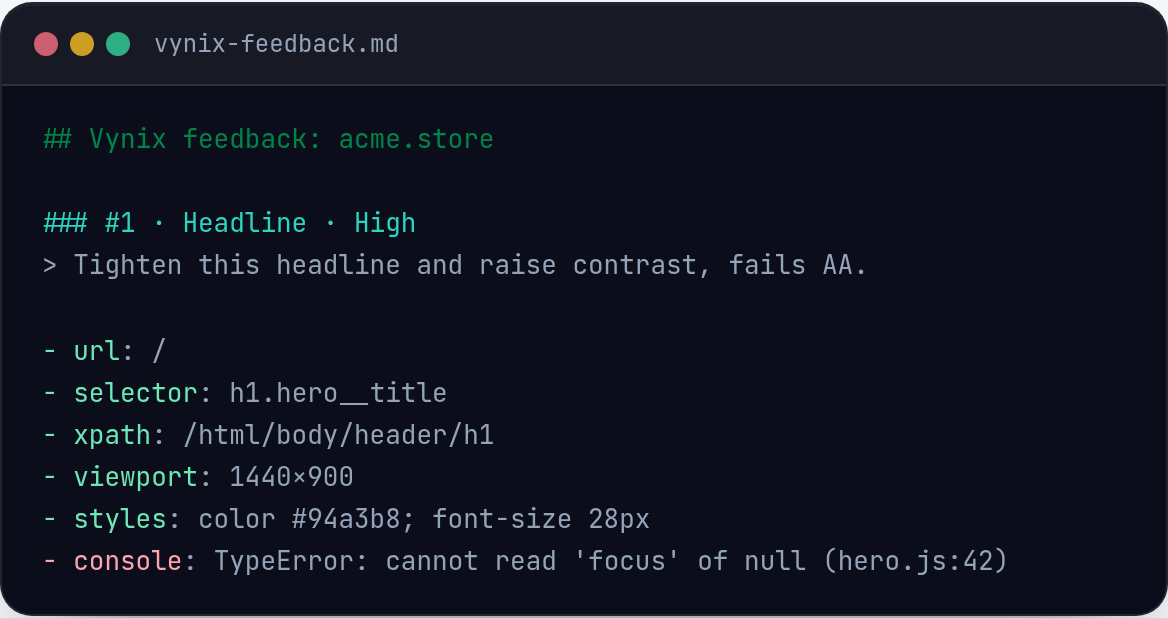
Why website feedback breaks down
Most website feedback starts as a human description of a visual or behavioral problem. That sounds reasonable until the issue depends on screen size, login state, cached data, a feature flag, or an API request that failed only once. By the time the message reaches the developer, the useful facts are missing.
A typical report might say, "The pricing card looks wrong on mobile." That could mean the text wraps badly, the card overlaps another element, the wrong plan is highlighted, or the CSS breakpoint is not firing. The developer needs to recreate the page, guess the viewport, inspect the DOM, check the console, and maybe ask for a screenshot. Each round of clarification delays the fix.
The problem is not that clients or teammates are bad at giving feedback. The problem is that most feedback tools collect comments, not context. A good website feedback workflow should capture what the person saw, what they clicked, and what the browser knew at that moment.
What useful website feedback should include
A useful report has enough detail for someone else to understand the problem without holding a meeting. It should tell the developer where the issue happened, what element was involved, what the user expected, and what technical signals were present when the issue appeared.
For visual issues, a screenshot matters. For interaction bugs, the clicked element matters. For frontend errors, the console matters. For broken data or slow loading, network context matters. None of these pieces is difficult to collect in isolation, but asking a non-technical reviewer to gather them manually is not realistic.
A strong feedback item usually includes:
- The exact page URL, including query parameters when they matter.
- A screenshot of the state the reviewer saw, not a later recreation.
- The selected element or area on the page, so the issue is not ambiguous.
- Browser console messages that appeared around the same time.
- Relevant network requests, especially failed API calls or slow responses.
- A short human note explaining what seemed wrong or unexpected.
- A clear owner or next step, so the item does not sit in a chat thread.
Where common feedback channels fall short
Teams often collect feedback through email, Slack, Google Docs, screenshots, spreadsheets, project management cards, or issue trackers. Each channel can work for part of the process, but each has a gap when used alone.
Chat is fast, but it is noisy. A bug report can be buried between unrelated messages, and important details are split across replies. Email gives more room, but it is disconnected from the code workflow. A spreadsheet can organize a review, but screenshots and technical details are awkward to maintain. GitHub issues are good for engineering work, but clients and non-technical reviewers may not want to write issues in the format developers need.
Screenshots help, but a screenshot alone still leaves questions. Was the user logged in? Did a request fail? Was the console full of hydration errors? Which button in the screenshot is actually broken? If the report has no technical context, the developer has to start from scratch.
The best workflow does not force clients to become QA engineers. It lets them point at what is wrong in the page itself, while the tool collects the technical details in the background.
- Chat is good for quick notes, but weak for tracking and technical context.
- Email is easy for clients, but slow for triage and assignment.
- Spreadsheets can list feedback, but do not naturally capture browser state.
- Issue trackers are useful for developers, but often too structured for casual reviewers.
- Manual screenshots show symptoms, but not the element, console, or network evidence.
Using Vynix to capture feedback in context
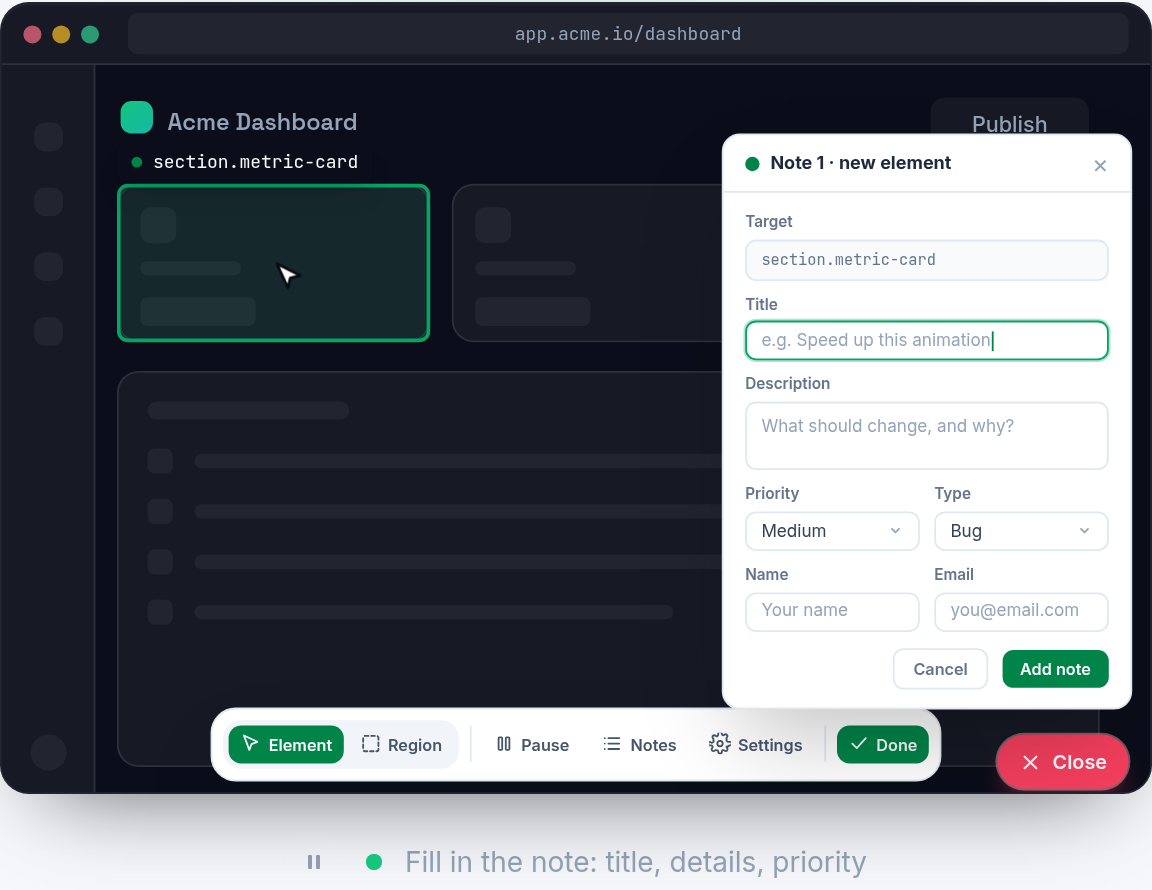
Vynix is built around the idea that the web page is the right place to collect website feedback. You drop a lightweight widget on the site, then reviewers click on the part of the page that looks wrong. Vynix captures the selected element, a screenshot, the console and network context, and an AI diagnosis of the likely root cause.
That changes the shape of the report. Instead of a vague note like "the signup form is broken," the developer can see which element was clicked, what the screen looked like, and whether the browser logged an error or an API request failed. The reviewer still writes a plain note, but the technical context travels with it.
This is useful for client reviews because clients can stay focused on what they know: whether the page matches the brief, whether the copy is right, whether the form behaves as expected, and whether the layout feels broken. It is also useful for internal teams because designers, PMs, QA testers, and developers can point at the same live page and create feedback in a consistent format.
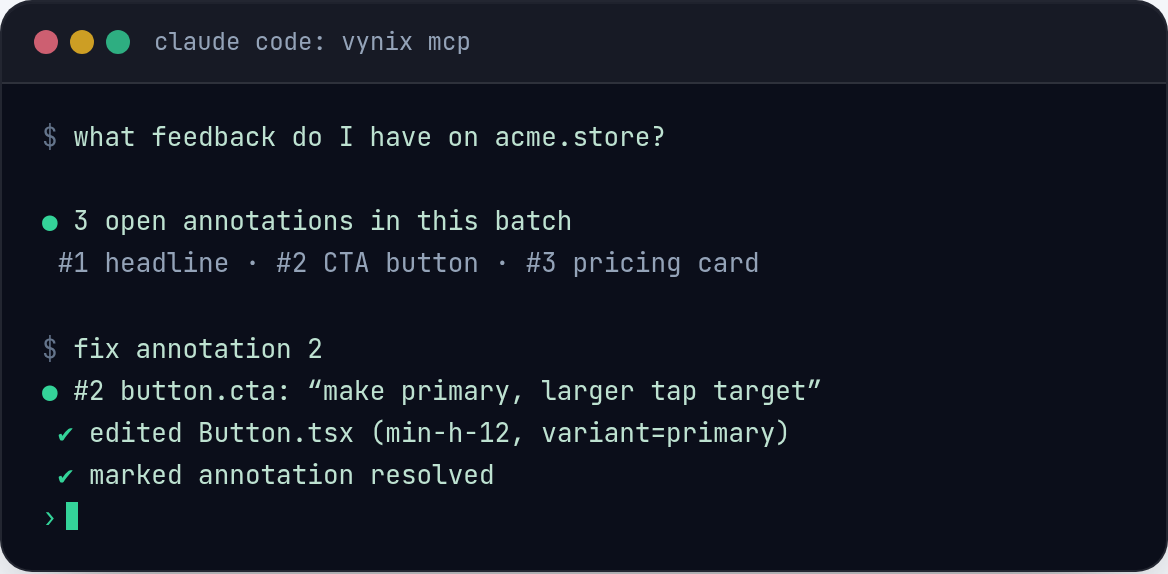
After the report is captured, Vynix helps move it into the build workflow. You can copy a ready-to-build prompt or open a GitHub issue and assign it to a coding agent. That matters because the handoff from observation to implementation is where many feedback items lose detail.
A practical review workflow
A good feedback process is simple enough that people will actually use it. The goal is not to create a perfect review ceremony. The goal is to collect accurate issues, group them sensibly, and turn them into work without repeated clarification.
For example, imagine a client is reviewing a new marketing site before launch. Instead of sending a long email with mixed copy changes and bug reports, they open the site, click the Vynix widget, select the hero button, and write, "This should link to the demo request form, not the pricing section." On another page, they select a testimonial card and note that the wrong customer quote is shown. If a form submission fails, Vynix can include the screenshot, console context, and network context from that moment.
A simple workflow could look like this:
- Install the Vynix widget on the staging site or review environment.
- Tell reviewers to click the widget, select the specific element, and write one issue per report.
- Ask reviewers to separate content changes from functional bugs when possible.
- Review the captured items once or twice a day instead of reacting to every message immediately.
- Copy a ready-to-build prompt for implementation work that needs developer or agent attention.
- Open a GitHub issue when the work should be tracked with code changes, review, and assignment.
- Close the loop with the reviewer after the change is deployed to the review environment.
How to write feedback developers can act on
Even with automatic context capture, the human note still matters. The best notes are short, specific, and written from the user's point of view. They do not need to include technical guesses unless the reviewer is sure. In fact, a wrong guess can send the developer down the wrong path.
A weak note says, "This is broken." A better note says, "When I click Start trial, nothing happens. I expected the signup form to open." If the issue is visual, name the expected result: "The headline overlaps the image at this width. It should stay above the image like it does on desktop." If the issue is content-related, avoid mixing it with a functional bug: "Change this CTA to Book a demo" is a different task from "This CTA opens the wrong page."
For teammates, it also helps to include priority and impact. A bug that blocks checkout is not the same as a 4-pixel alignment issue in a footer. Priority does not need to be complicated. Use plain labels like blocker, should fix before launch, and can wait.
Vynix reduces the burden on the reviewer by collecting the browser context, but it does not replace clear thinking. The best results come from pairing automatic capture with concise notes about expected behavior.
Turning feedback into buildable work
Collecting feedback is only half the job. The real test is whether the feedback becomes a clear change in the codebase. If reports sit in a spreadsheet or a long chat thread, they become stale. Someone has to translate them into tickets, prompts, pull requests, or agent tasks.
This is where context matters again. A coding agent or developer needs a concrete task, not just a screenshot. A useful build prompt should state the problem, point to the affected element, describe the expected behavior, and include any console or network clues that can narrow the fix. Since Vynix captures the element, screenshot, console, network context, and likely root cause diagnosis, the prompt can start from evidence instead of guesswork.
GitHub issues are still valuable when the change needs tracking, review, and discussion. Opening an issue from the feedback item keeps the report close to engineering work. Assigning it to a coding agent can help teams move from report to proposed fix faster, especially for contained frontend bugs or copy and layout changes.
The main habit is to keep feedback atomic. One report should become one clear task when possible. If a reviewer reports five unrelated changes in one note, split them before assigning the work. Smaller tasks are easier to review, easier to test, and easier to close.
- Good website feedback captures the page, element, screenshot, and browser context, not just a written comment.
- Clients and teammates should be able to report issues directly on the site without manually gathering technical details.
- Vynix helps turn feedback into buildable work by capturing context, offering an AI diagnosis, and supporting ready-to-build prompts or GitHub issues.
Frequently asked questions
What is the best way to collect website feedback from clients?
Ask clients to give feedback directly on the page they are reviewing, with one issue per report. A tool like Vynix helps because the client can click the affected element while the tool captures a screenshot, element details, console context, and network context.
Should all website feedback become a GitHub issue?
No. Small copy notes or design questions may not need a GitHub issue. Bugs and implementation tasks that require code changes are better candidates, especially when they need assignment, review, and a record in the development workflow.
How does technical context improve feedback?
Technical context reduces guessing. If a report includes the clicked element, screenshot, console messages, and network activity, a developer can often see whether the issue is caused by markup, styling, JavaScript, or a failed request without asking the reviewer to recreate it.
Install the widget with one script tag, point at a bug, and hand the fix to your coding agent.
Get started free