How the Vynix AI diagnosis works
Vynix AI diagnosis helps turn a clicked website problem into useful developer context. It combines the selected page element, visual evidence, browser activity, and nearby technical signals to suggest a likely root cause.
- Add the Vynix widget to the site you want to inspect, following the setup steps in the Vynix docs.
- Open the page with the issue, start Vynix, and click the broken or confusing part of the page.
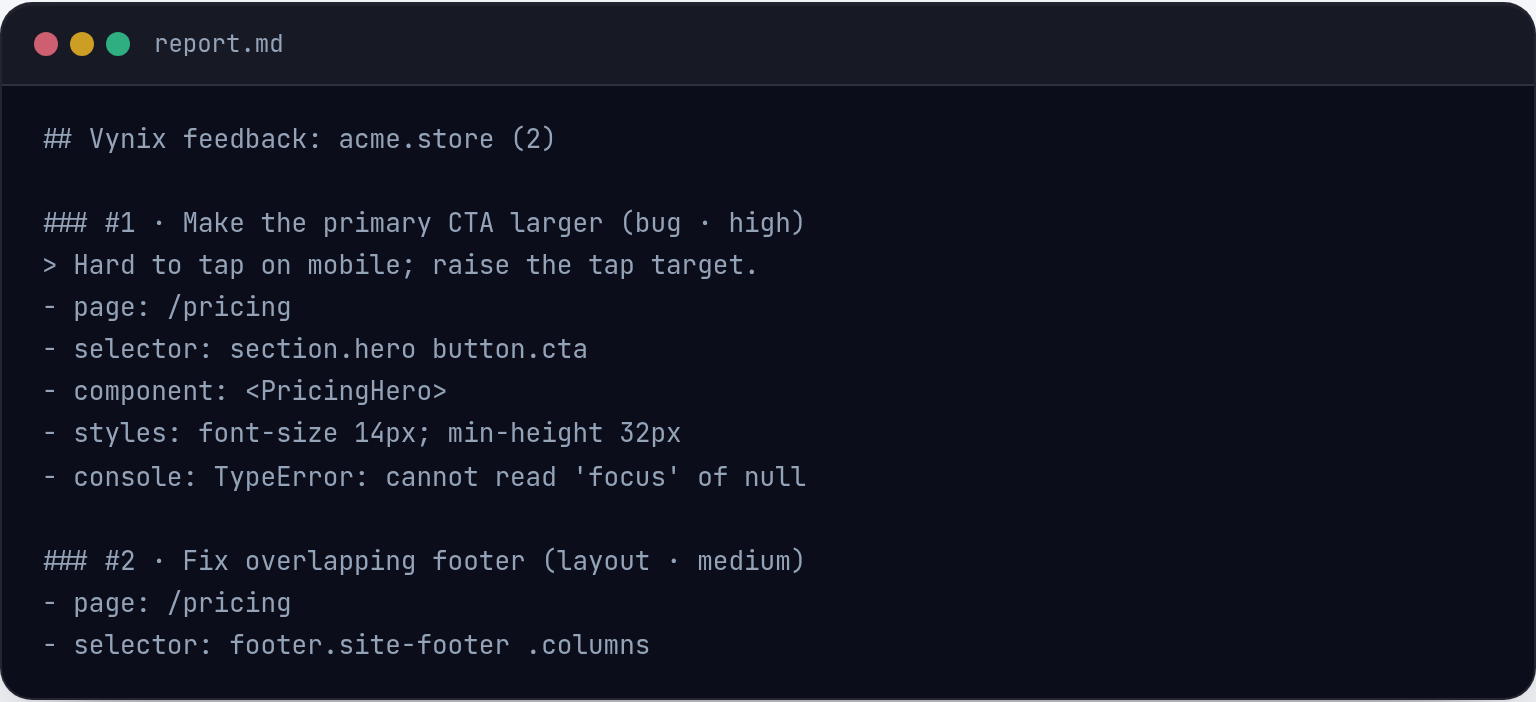
- Vynix captures the selected element, a screenshot, console messages, and relevant network activity.
- The AI reviews that context and generates a diagnosis of the likely cause, such as a frontend bug, missing data, failed request, styling issue, or integration problem.
- Review the diagnosis, then copy a ready-to-build prompt or create a GitHub issue and assign it to a coding agent.
The diagnosis is based on the context Vynix can capture from the page at the time you click. That includes what you selected, what the page looked like, and browser signals that may explain the problem. This gives the AI more detail than a plain text bug report.
The AI output is meant to be a starting point for developers, not a guaranteed final answer. You should review the captured evidence, confirm the cause in your codebase, and test the fix before shipping changes.
For best results, reproduce the issue before clicking, choose the most specific broken element, and make sure the page is in the same state a user would see. If the issue depends on login state, feature flags, or data, include that context in the follow-up prompt or issue description.
Related questions
Does Vynix change my website when it diagnoses an issue?
No. Vynix captures context from the page and generates a diagnosis. It does not automatically change your code or deploy a fix.
Why might the AI diagnosis be incomplete or wrong?
The diagnosis depends on the context available in the browser. If the root cause is in backend code, build configuration, private services, or data Vynix cannot see, the AI may only provide a likely direction. Use the diagnosis with your code review and tests.
Read the full documentation or email hello@vynix.in.